Help
OnCue is free. Get it from the front page, and see what's changed in each version in the changelog.
The popover
Click OnCue's icon in the menu bar to open it. Sound is on the left and motion on the right, each with a meter showing what OnCue is picking up right now, a checkbox to turn that trigger on or off, and a slider for how much it takes to set it off. Under the meters is the current state, and the button that arms and disarms.
Each meter is coloured against its own slider: green while what it's picking up wouldn't start a recording, yellow as it gets close, and red once it would. Move the slider and the colours move with it, so you can see what will set OnCue off before you arm it.
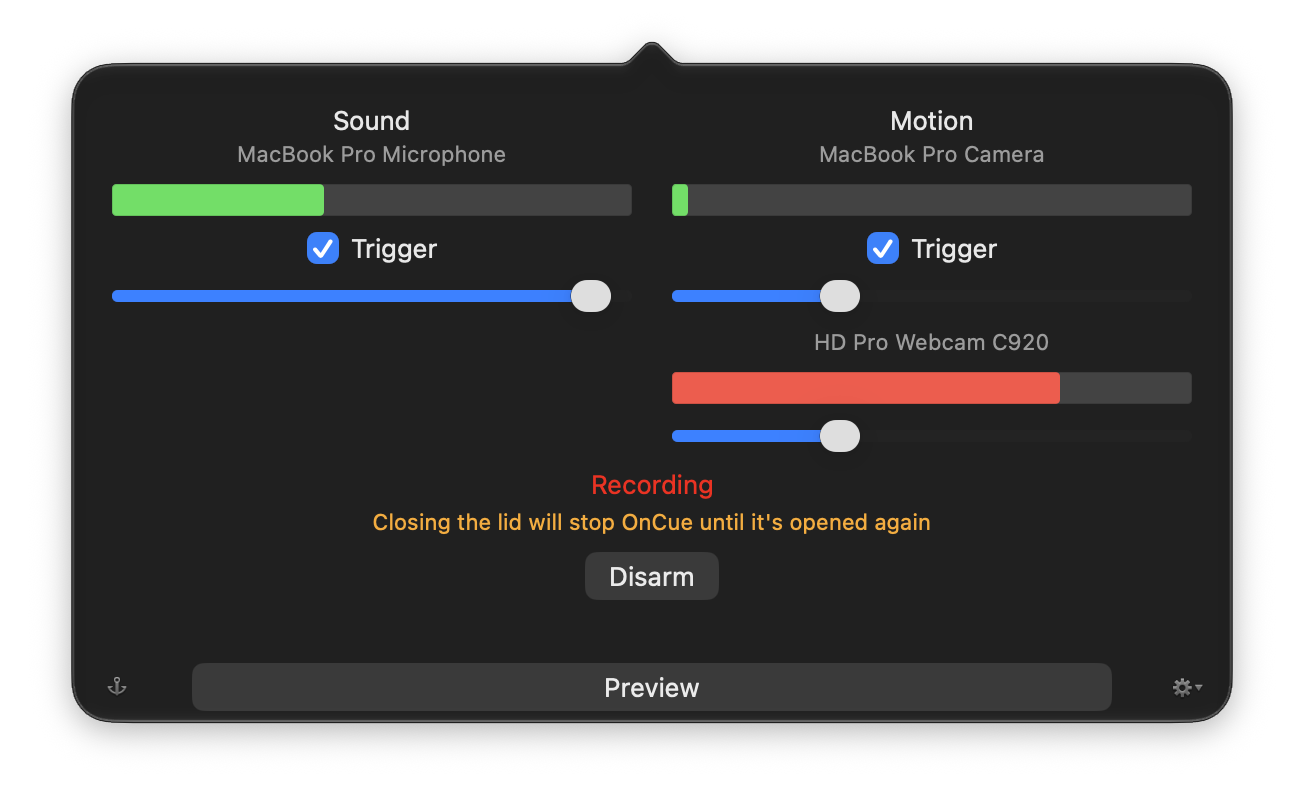
Arming
Press Arm and OnCue counts down, then watches. While it's armed, any motion or sound past its slider starts a recording, and the recording keeps going while that continues. Arm is unavailable when nothing could set it off: both triggers off, or their devices missing.
The menu bar icon
The icon says what OnCue is doing: plain while unarmed, orange while it counts down, red with a blue center while armed, and all red while it's recording.

Settings
The gear in the popover opens Settings. Pick the camera, a second camera, and the microphone; choose how long recording continues after everything goes quiet, and how many seconds from before the trigger each recording includes. You can also pick where recordings are saved, have OnCue open when you log in, arm itself whenever it opens, and open the preview window at launch.
Both cameras are optional. Choose no camera at all and OnCue listens instead, recording sound with nothing to look at, which is worth knowing if you want to leave it somewhere a camera would be unwelcome.
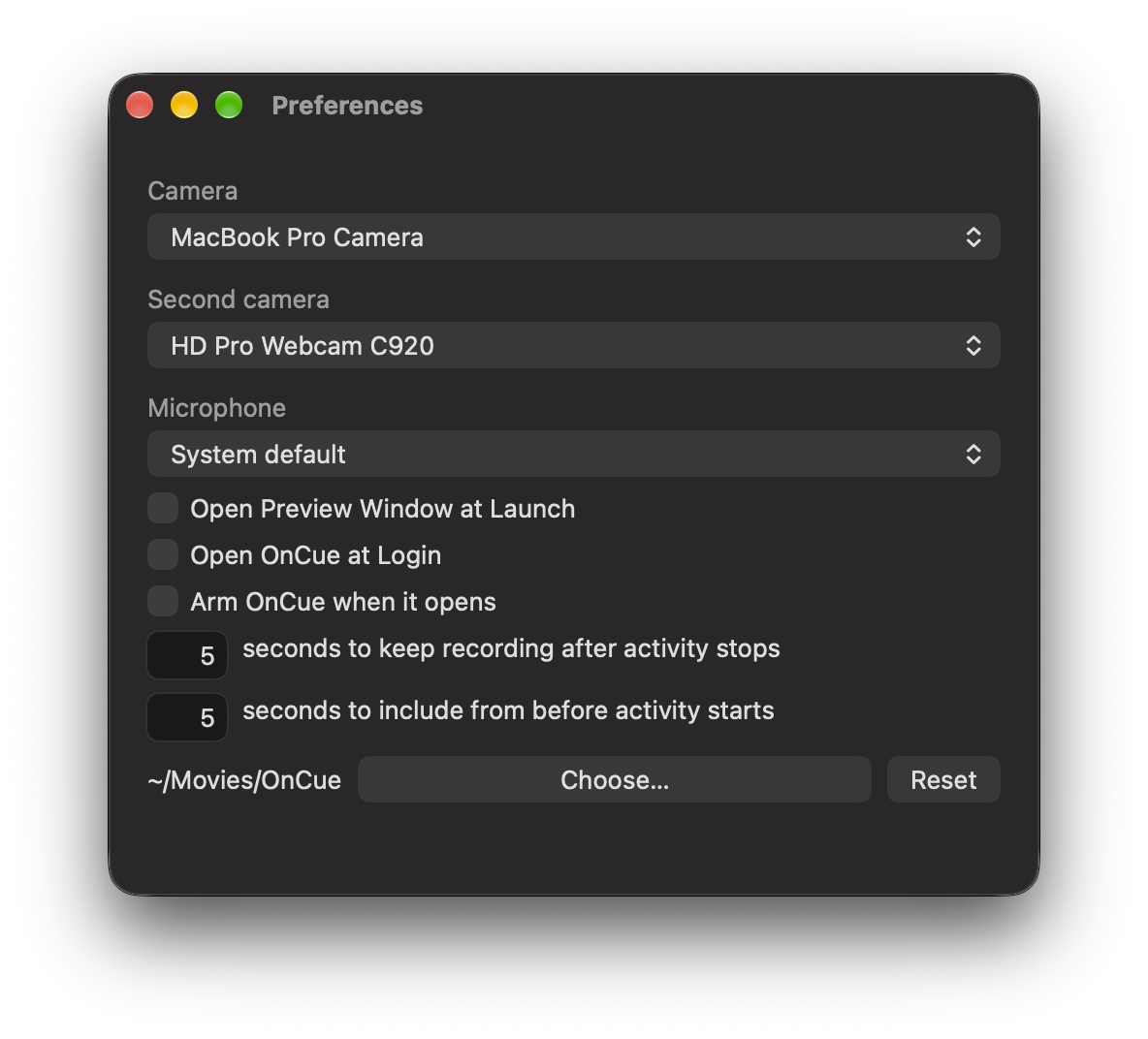
Two cameras
Choose a second camera in Settings and OnCue watches both at once, each with its own meter and slider in the popover, and each recording its own file. Anything that sets one off records both. Unplug one and OnCue keeps watching with the other.
The preview window
Preview shows what OnCue sees, with movement picked out in red, so you can aim the camera and set the sliders. Two cameras appear side by side.
Your recordings
Recordings go to the OnCue folder inside your Movies folder, named for when they start and the camera and microphone they came from. Choose Show Recordings from the menu to open that folder at the newest one. In Settings you can pick a different folder, including one on another disk or one that syncs to the cloud; if it isn't there when OnCue needs it, recordings go back to your Movies folder until it is.
If a recording loses frames, because the Mac was busy or the camera couldn't keep up, its name says how many seconds are missing. Most recordings never get one, so a name that carries it is telling you that file doesn't show everything that happened.
When the camera is on
OnCue opens the camera only while it's watching: armed, or while the popover or the preview window is open. The rest of the time the camera is off and its light in the menu bar is out, so a lit camera means OnCue is recording or ready to.
On macOS 26.2 and later there's a setting called Edge Light that brightens the screen to light whoever is in front of the camera. It turns itself on for any app using the camera, including OnCue, which is unhelpful when the point is to watch a room quietly. OnCue says so under the motion meter when it's happening, but it can't switch it off; that's a macOS setting.
Arming itself
OnCue can be set to arm itself every time it opens, so a Mac that restarts goes back to watching without anyone touching it. It counts down for fifteen seconds first and tells you it's arming, so there's time to stop it. Worth knowing before you turn it on: a Mac set this way records whoever walks past it after every restart, whether or not they know OnCue is there.
Sleep
While it's armed, OnCue keeps your Mac from going to sleep on its own. Closing a laptop's lid still sleeps it unless the Mac is plugged in with an external display, so OnCue warns you when that's the case, and tells you afterwards if your Mac slept while armed.
Permission
macOS asks for camera and microphone access the first time OnCue needs them. If you refuse, or change your mind later, you can set it in System Settings under Privacy & Security. Without a microphone OnCue records video only, and without a camera it records sound only.